How Clerkzo works, feature by feature.
From pasting your website address to leads landing in your inbox: here is everything Clerkzo does, exactly how it does it, in the order you'll meet it. No fluff, just the product.
Point it at your website. That's the whole setup.
You give Clerkzo your website address, optionally name your agent, and pick a language. That's everything it needs to start.
It then crawls your site (same domain only, HTML pages only, skipping images and files), pulls out the readable text from each page, and turns it into searchable knowledge. You watch it happen live: reading your website, creating embeddings, training your chatbot, with a page-by-page progress count. It usually takes under a minute.
riversidephysio.com
Usually takes under a minute.
- 8 languages, including English, Spanish, French, German, Portuguese, Arabic, and Hindi
- Crawls up to 300 pages per agent depending on your plan
- Live 3-step training progress, usually under a minute
- Retrain any time when your site changes
It writes its own business profile, and you stay in charge of it.
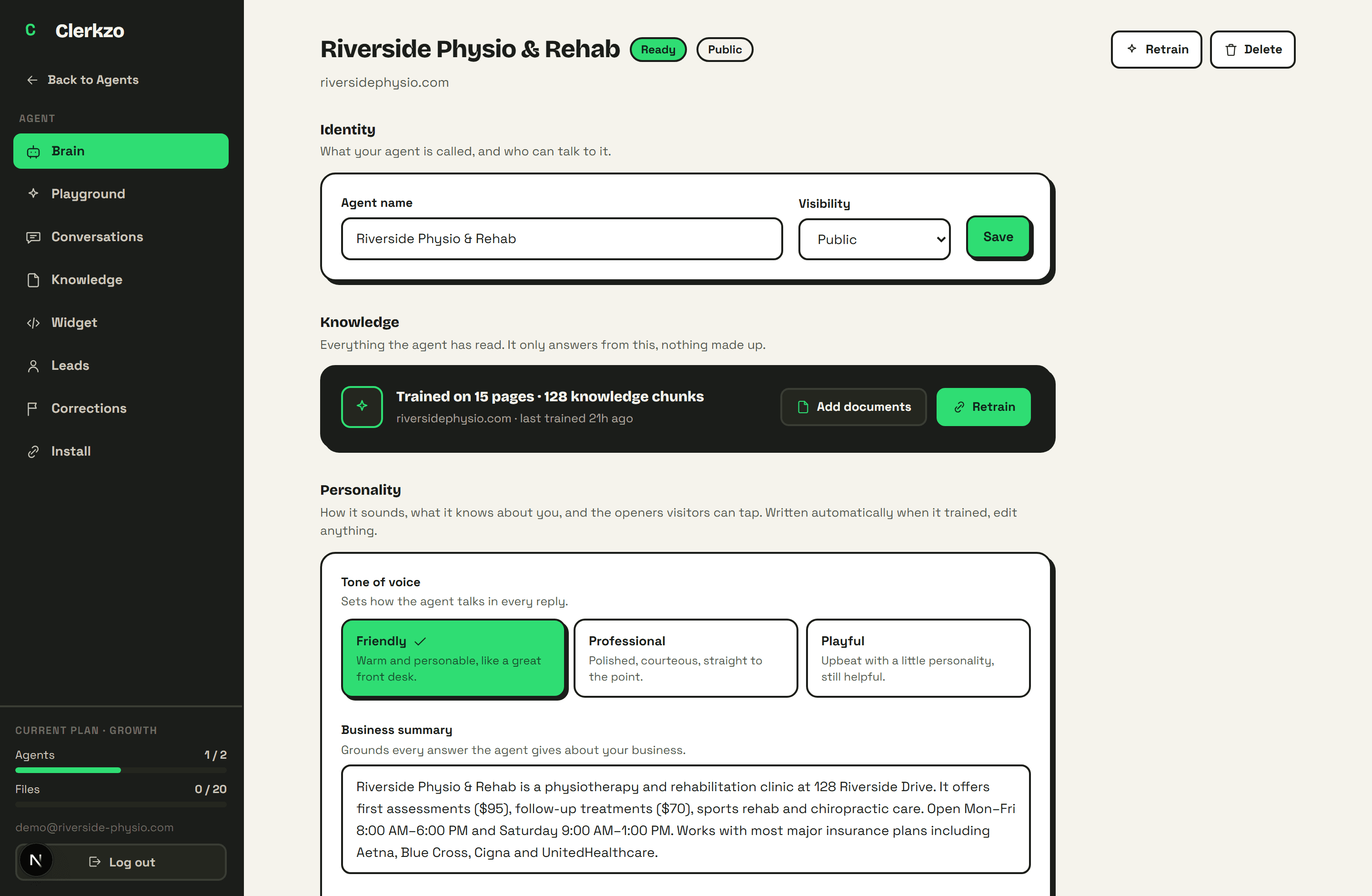
After training, Clerkzo automatically writes a business summary of what you do, and drafts suggested questions visitors can tap in the widget.
Both are fully editable, and you pick the agent's tone of voice: friendly, professional, or playful. Rewrite the summary in your own words, and edit up to 3 suggested questions, enough to be genuinely useful without crowding the chat. The summary grounds every answer the agent gives; the questions become the tappable chips your visitors see first, shown in a live preview as you type.
- Auto-written business summary from your real pages
- 3 tones of voice: friendly, professional, playful
- Up to 3 suggested questions, with a live widget preview
- The summary grounds every answer
Add the documents your website doesn't cover.
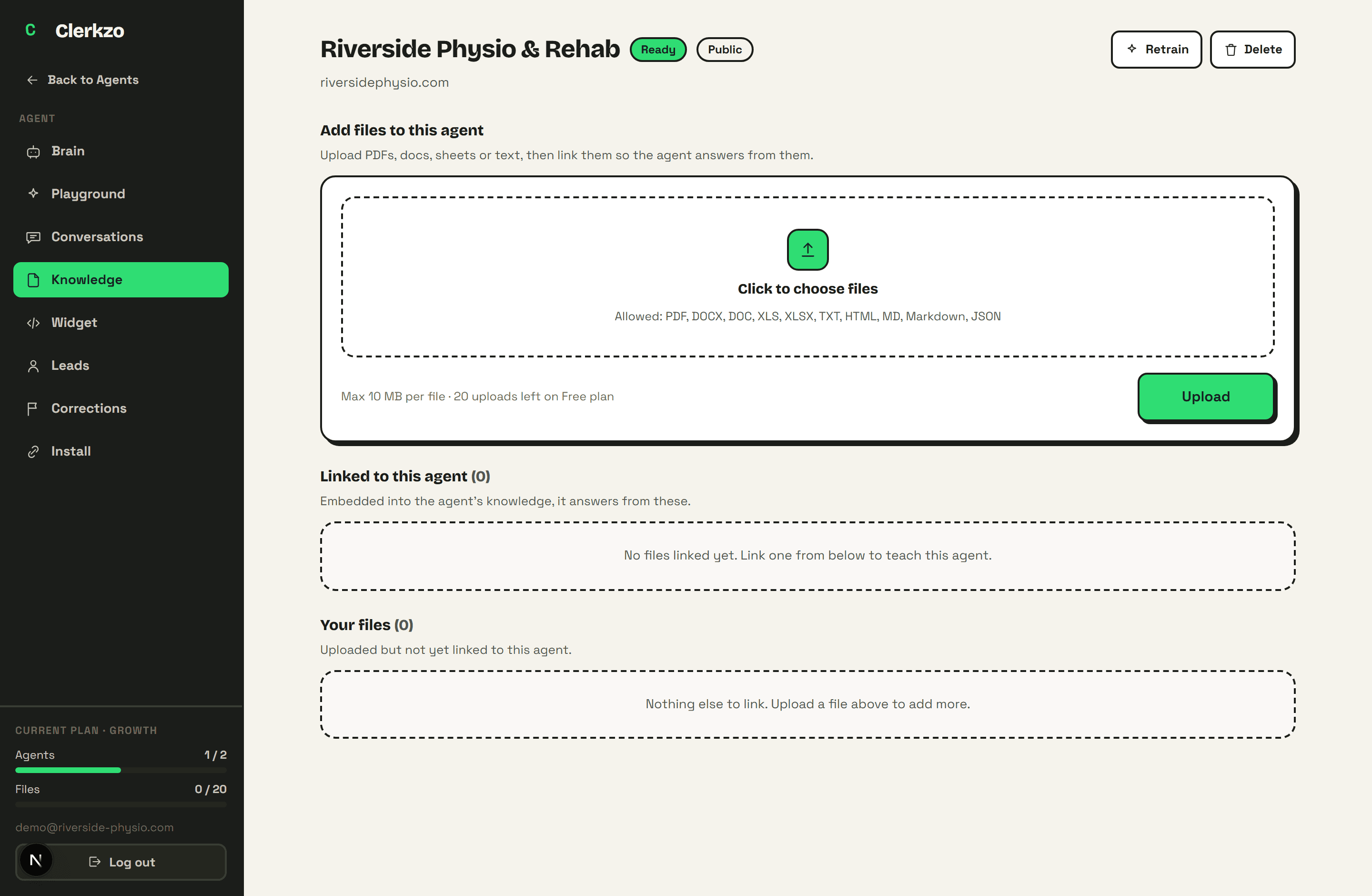
Price lists, service menus, policies, FAQs, if it lives in a document instead of on your site, upload it and the agent learns it too.
Files live in one account-level library, and you link or unlink them per agent, so several agents can share the same documents. Upload, link, unlink, and delete, all from the Knowledge tab.
- 10 file types: PDF, DOCX, DOC, XLS, XLSX, TXT, HTML, MD, Markdown, JSON
- Up to 10 MB per file
- One shared library, linked per agent
A full widget studio, with a live preview of every change.
The Widget Studio controls how the chat looks and behaves on your site, and a sticky live preview updates as you type.
Pick one of 8 preset themes or set your own accent colour, choose light or dark, and one of 3 shape styles. Set the header title, subtitle, and an avatar (your logo or a photo). Rewrite the welcome message, input placeholder, and chat tab label, and pick from 3 fonts.
The launcher bubble is yours too: 8 icons or your own image, circle or rounded square, left or right corner, with sliders for size and spacing. Add a greeting teaser that pops up after a delay you choose, and decide whether the widget shows on mobile, opens on page load, shows suggested questions, shows sources under answers, and what the typing loader says while it thinks.
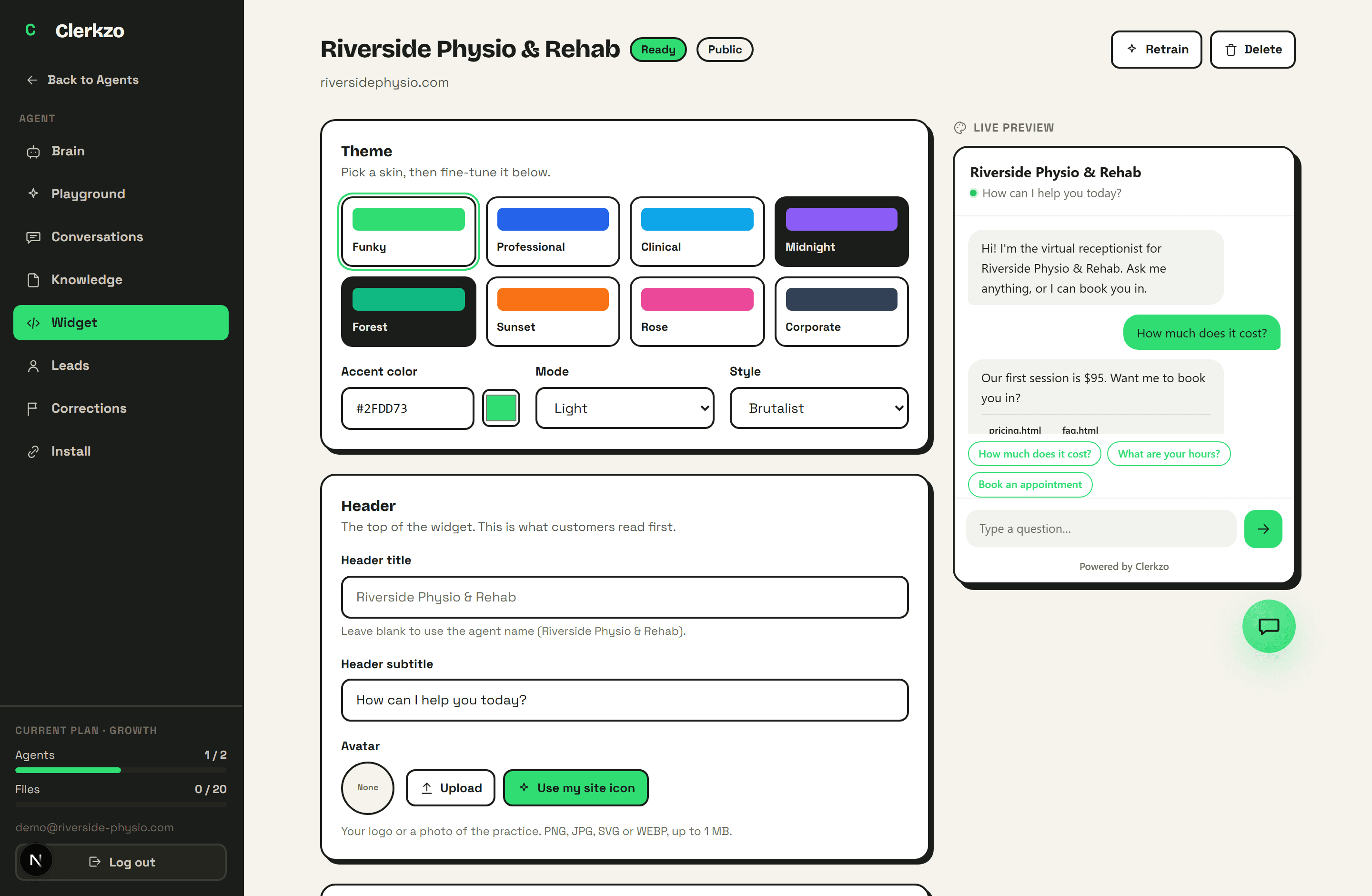
- 8 themes · light/dark · 3 styles · any accent colour
- 8 launcher icons or your own logo, size and position sliders
- Greeting teaser with 0–60s delay
- Toggles: mobile, open-on-load, suggested questions, sources, branding
- Up to 8 rotating typing-loader messages
You decide what it collects, and exactly how it asks.
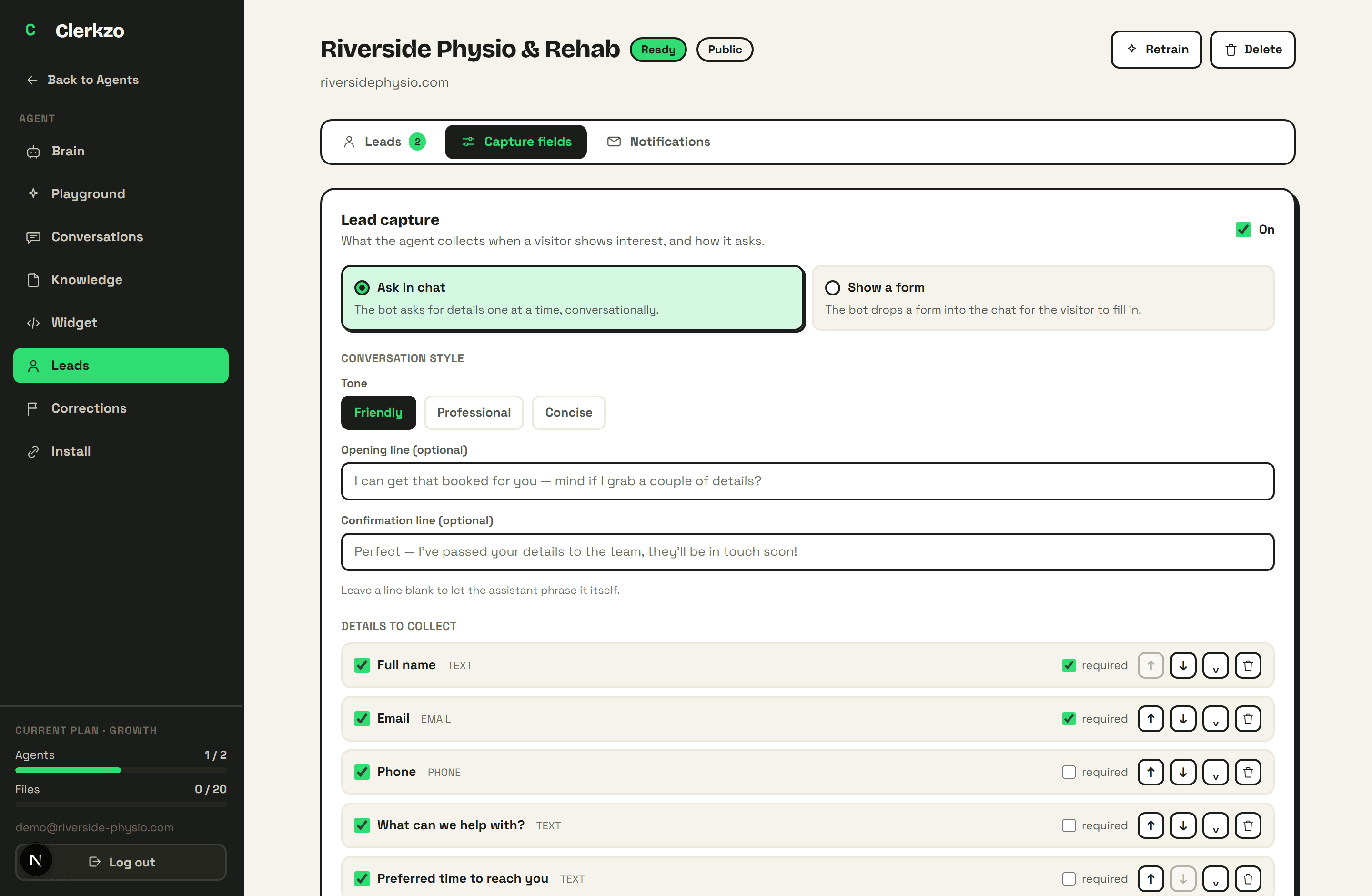
When a visitor shows interest, the agent captures their details. You choose the mode: ask conversationally, one question at a time, or drop a tidy form into the chat.
Fields are completely yours: 9 types (text, email, phone, long text, number, date, dropdown, multi-select, checkbox), each toggleable, reorderable, and markable as required, plus unlimited custom fields. In conversational mode you pick a tone (friendly, professional, or concise) and can write your own opening line, confirmation line, and per-field question wording. In form mode you control the title, description, button text, success message, and consent note. A live interactive preview shows exactly what visitors will see.
- Two modes: ask in chat, or show a form
- 9 field types + unlimited custom fields
- 3 tones + custom opening, confirmation, and question wording
- Faithful live preview of both modes
A real lead inbox, not a pile of emails.
Every captured lead lands in a pipeline inbox inside your dashboard. Each lead shows the visitor's name, email and phone (tap to call or email), every custom field they answered, and when it happened, with an unread marker until you've seen it.
Move leads through 5 statuses: New, Contacted, Qualified, Won, Lost. Attach a private note to any lead, search across every field, filter by status or unread, and use bulk actions to update or clear many at once. Leads that came from a human-handoff request carry a handoff badge so you know they're urgent.
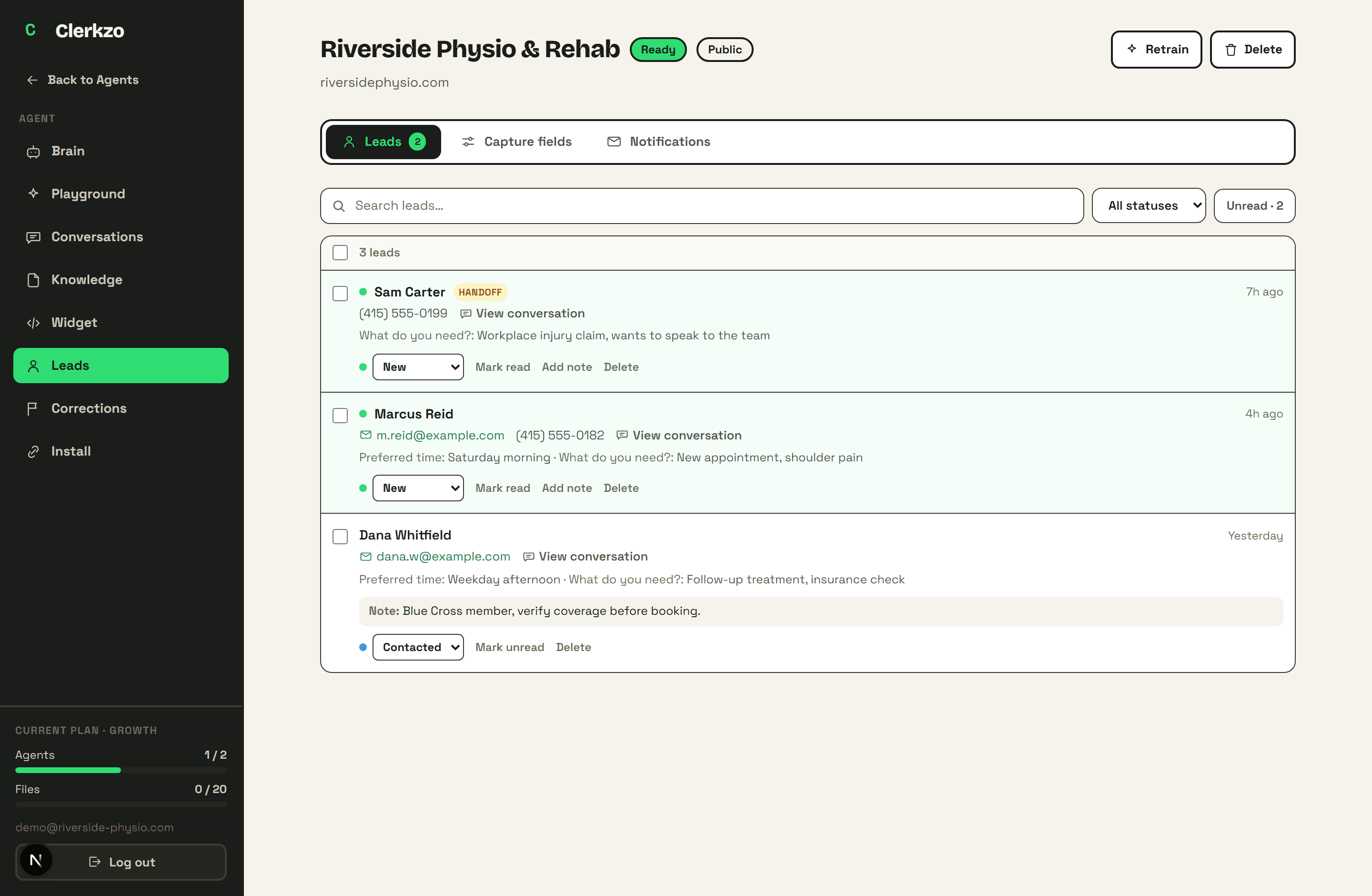
- 5 pipeline statuses: New → Contacted → Qualified → Won / Lost
- Private notes, search, status and unread filters
- Bulk actions: mark read/unread, set status, delete
- Handoff leads badged as urgent
Read every conversation your agent has ever had.
The Conversations tab shows the full transcript of every chat, live ones from your website and test ones from the playground, clearly labelled, with the sources the agent used under its answers.
This is where trust comes from: you can see exactly what was asked and exactly what it said, and act on it, right there.
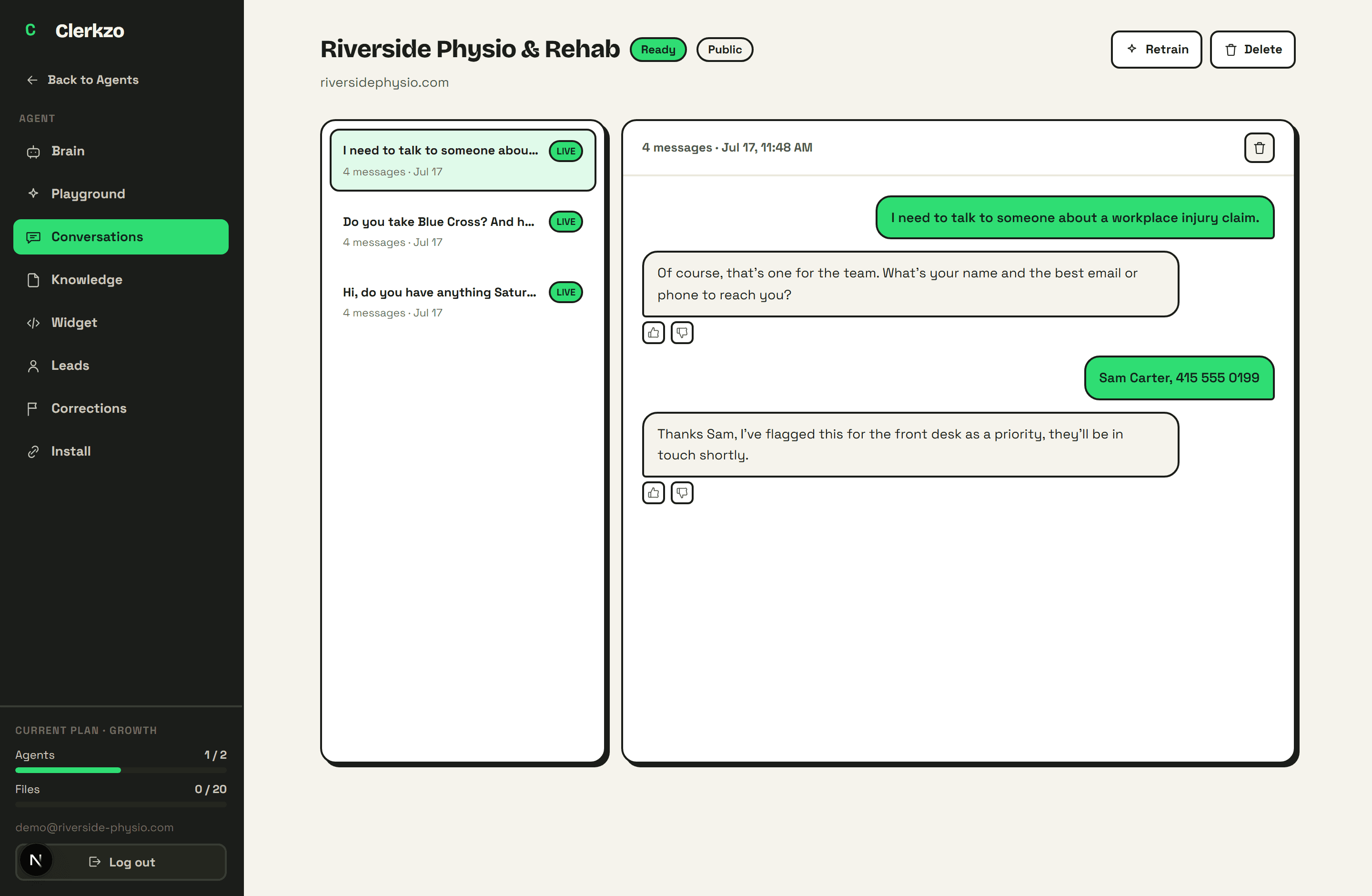
- Full transcripts, live and test chats labelled
- Source links under answers
- Rate any answer 👍/👎 inline
Fix a wrong answer once. It never makes that mistake again.
See an answer you don't like, in the playground or in a real conversation? Thumbs-down it and type what it should have said.
That correction becomes authoritative: whenever a similar question comes in, your verified answer overrides everything else, permanently, until you delete it. A Corrections page lists everything you've taught it so you can review or remove any correction later.
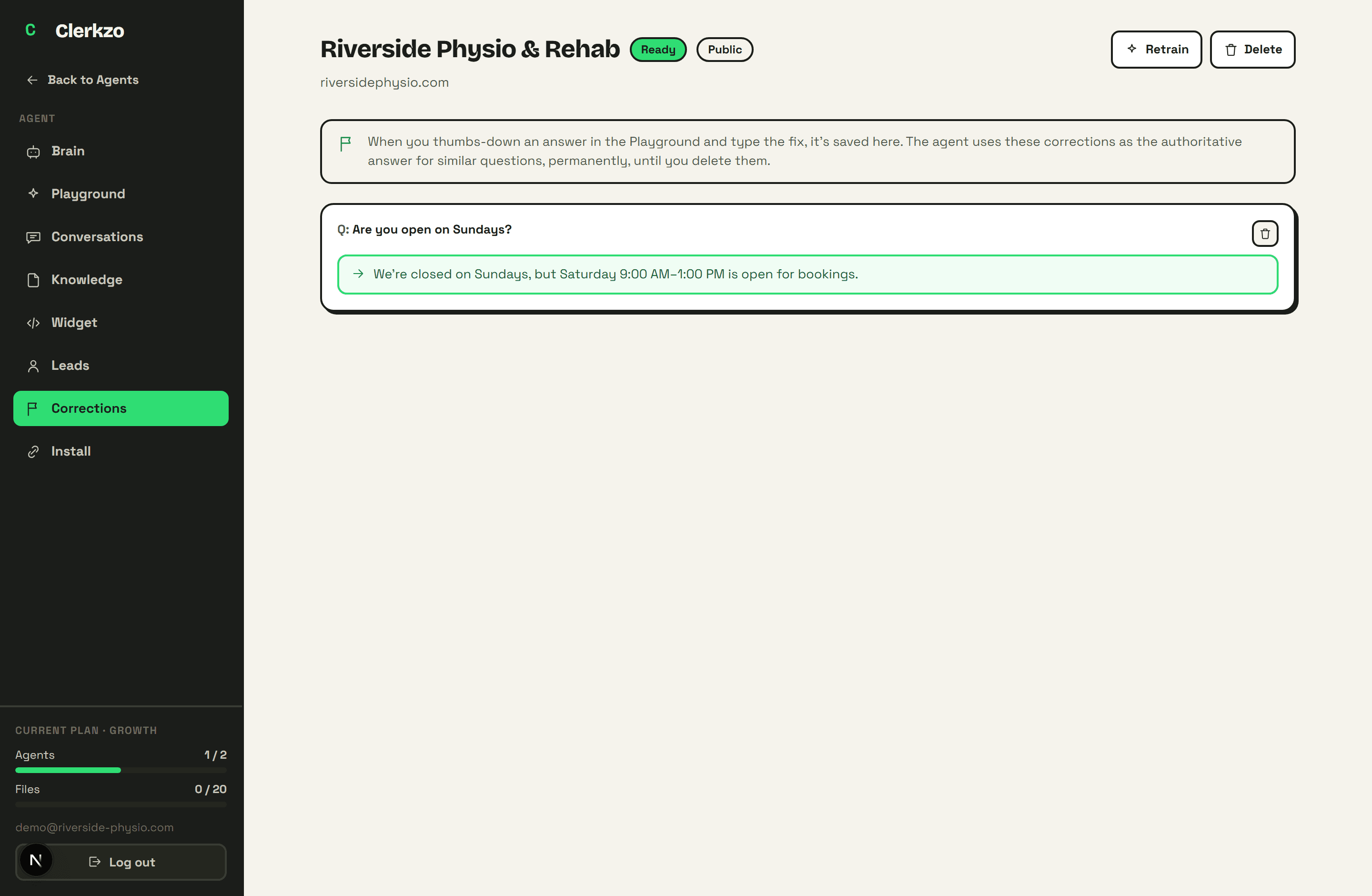
- Thumbs-down any answer and type the fix
- Applies immediately and permanently to similar questions
- Review and delete corrections any time
- Available on all paid plans
Know the moment a lead lands.
Email: every lead and handoff is emailed to the address you choose, and the email's reply-to is set to the customer, so you just hit Reply to answer them directly.
Webhook: Clerkzo POSTs each lead as structured JSON to any URL, which is how it plugs into Slack, Zapier, Make, a CRM, or your own system. Notifications are fire-and-forget: even if one fails, the visitor's chat is never affected.
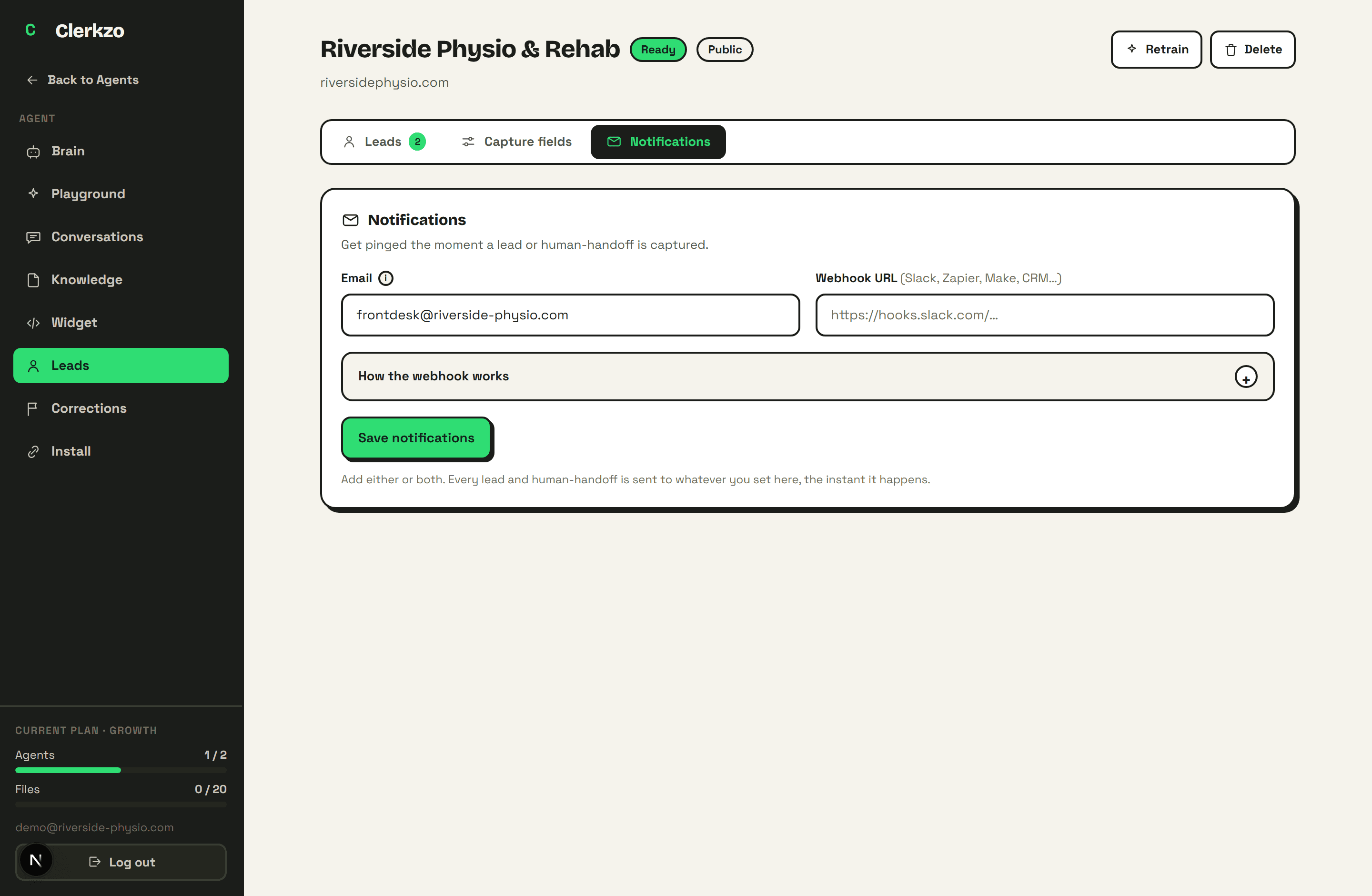
- Email with reply-to set to the customer
- Webhook JSON to Slack, Zapier, Make, or your CRM
- Fires instantly on every lead and handoff
- Never interrupts the visitor's conversation
Try everything before a single visitor sees it.
The Playground is a working replica of your live widget, inside your dashboard. Same brain, same theme, same welcome message, same suggested questions, and the same lead capture, so what you test is exactly what your visitors will get.
Ask it the questions your customers actually ask. If an answer is off, thumbs-down it right there and type the fix, it becomes a correction on the spot. Test chats show up in your Conversations tab labelled as tests, so they never mix with real ones.
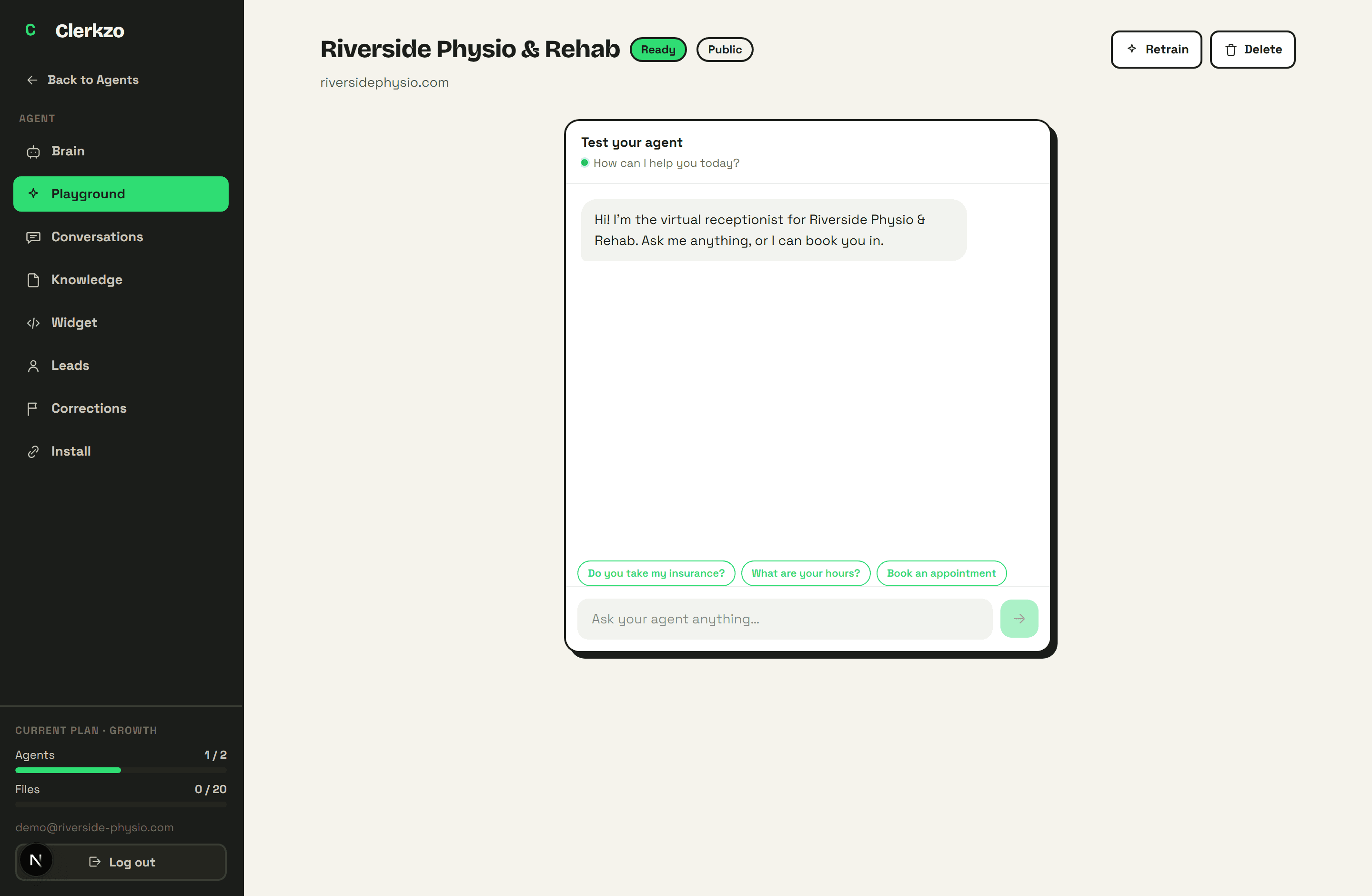
- Exact same brain and settings as the live widget
- Lead capture works in the playground too, both modes
- Rate answers and teach corrections right in the chat
- Test chats labelled separately in Conversations
It stays in its lane, and hands off when it should.
This one isn't a settings page, it's how every Clerkzo agent behaves out of the box, with nothing to configure. Your agent is locked to one job: being the receptionist for your business. It refuses everything else, no writing essays, no math homework, no medical or legal advice, no pretending to be something it isn't, and it treats attempts to manipulate it ("ignore your instructions…") as noise.
It only answers from your actual content. If a question is about your business but the answer isn't in what it learned, it says it isn't sure and offers to connect the visitor with your team instead of inventing something. And when a visitor asks for a human, it collects their name and contact details first, then creates a priority handoff lead and notifies you, on every plan.
- Hard-scoped to your business, refuses off-topic requests
- Built-in prompt-injection defenses
- Says "I'm not sure" instead of inventing answers
- Human handoff included on every plan
One line of code. Anywhere.
The embed is a single script tag pasted before the closing body tag. The widget renders inside a Shadow DOM, which means your site's styles can't break it and its styles can't touch your site.
The dashboard includes step-by-step install guides for 9 platforms, and before you go live you can test everything in the built-in playground, which runs the exact same brain as the live widget, so what you test is what your visitors get.
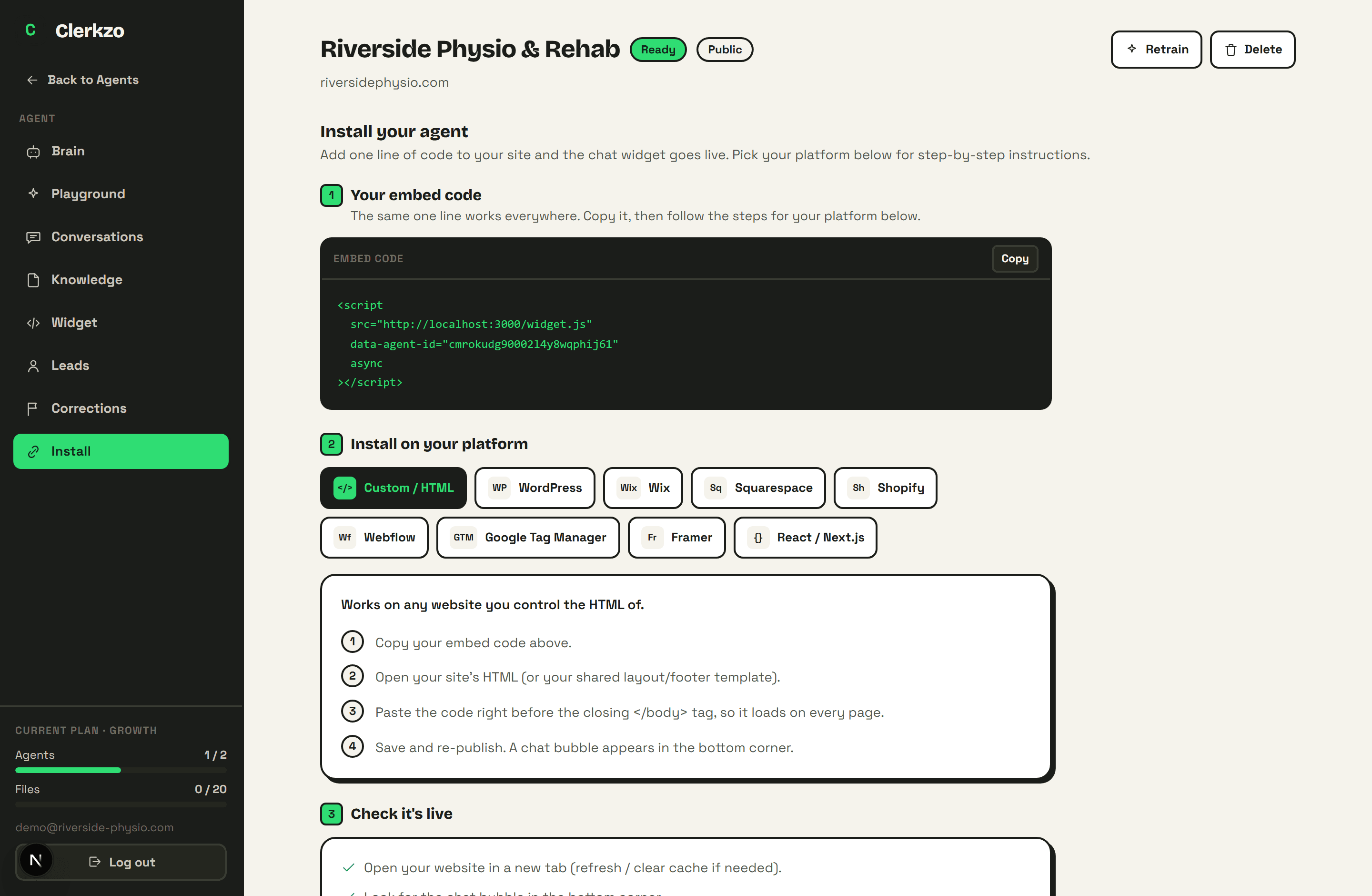
- Single script tag, loads asynchronously
- Shadow DOM: your site's CSS and the widget can't break each other
- Guides for WordPress, Wix, Squarespace, Shopify, Webflow, GTM, Framer, React/Next.js, and custom HTML
- Test in the playground first, same brain as the live widget
Which features are on which plan?
Everything above is included from $19/month; webhooks and Slack notifications arrive on higher tiers. The pricing page has the full breakdown.
See all of it working on your own website.
Paste your URL and get a live preview trained on your real pages. No credit card, nothing to install to try it.